Archive for the ‘WordPress’ Category

Simple Flash Video Plugin is the Best Plugin for Playing Flash Videos in WordPress

The Simple Flash Video plugin by Simple thought Productions is the best way to show your .flv and .f4v videos in a WordPress blog.

The plugin utilizes JW Player and Shadow Box to create a clean viewing experience. Your user clicks on the video they want to play and the video opens in a Shadow Box that hides the rest of the web page.  It’s very easy to install, and looks better then any other players that I have tried.

You can look at an example on EverymanIT.com by following this link: http://www.everymanit.com/2009/12/30/laptop-repair/

If you like what you see you can download the plugin from: http://www.simplethoughtproductions.com/sfv-plugin/

Tracking Login and Registration for WordPress in Google Analytics

Now that my new WordPress site is up and running I have been trying to find a way to track new user registration.  I want to be able to back track new registrations to the sources that they come from.  I setup Goals in Google Analytics, but it was still not tracking new user registrations.

The reason apparently is that the login page does not load the Analytics code the way other pages and posts on the site do.  You have to go in and edit the login page and paste the Google code in manually.

To do this find wp-login.php.  You then paste:

<script type="text/javascript">
var gaJsHost = (("https:" == document.location.protocol) ? "https://ssl." : "http://www.");
document.write(unescape("%3Cscript src='" + gaJsHost + "google-analytics.com/ga.js'
type='text/javascript'%3E%3C/script%3E"));
</script>
<script type="text/javascript">
var pageTracker = _gat._getTracker("UA-XXXXXXX-X");
pageTracker._initData();
pageTracker._trackPageview();
</script>

Before EVERY </BODY> tag on the page. (Make sure to change “UA-XXXXXXX-X” to your account number)

Now Google Analytics will track the login pages, and you can create goals based on new registrations and such.

I originally found this solution at http://www.tdcreative.net/blog/how-to-track-wordpress-signups-and-comments-with-google-analytics/

Problems Accessing Your WordPress Blog on an Internal Server / Computer

I recently setup my WordPress blog on my own server using Comcast Internet service (very good performance)  Everything seemed to work great until I tried to access the site from a computer on the internal network.  When I tried to go to www.EliTheComputerGuy.com the connection was blocked by the router.  Routers do not allow people to “loop” out of a network and on to the internet and back in again.  This is a standard security feature.

What I did not realize is that all links and content in WordPress are tied to the domain name you setup under the general settings.  When I went to the internal IP address of the server the site would come up in fits and starts and be incomplete.  The reason is that all the links and locations are based on www.EliTheComputerGuy.com and not on the 10.1.10.x  IP address.

The solution to this problem is to edit the HOSTS file on the computer that is trying to view the site.  You do a search for HOSTS.  You then open the HOSTS file and add:

<www.YourDomain.com>                        <internal IP address>

Example:

www.elithecomputerguy.com                   10.1.10.45 

Then just save the file.  You may have to restart your browser, or even computer, but now you will be able to access your WordPress blog from an internal computer

Category Posts WordPress Plugin: Easily Display Posts from Only One Category

If you’re blog is like mine you cover a lot of topics, but only one or two are the ones that you REALLY want people to pay attention to.  Recently I have begun creating Video Classes and posting them to my WordPress blog, the problem is under the normal category structure they get lost in the shuffle.  When I create 1 video per week, but 10-20 regular posts you can see that it’s easy for my blog visitors to overlook the videos.  I have found a great little plugin to help me with this.

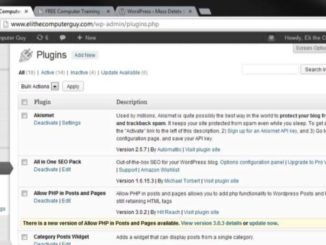
The Category-Posts plugin is about as simple as it gets for plugins.  Once you activate it it allows you to have a sidebar widget that will only show posts from a single category.  You give the widget a title, and tell it how many posts to show and it creates a little sidebar box for you.

So now when you go to my site there is a box that says “Video Classes” and only shows posts from the Video Class category.  Underneath there is another category widget that then shows all the categories on the web site.

You can use multiple instances of the Category-Posts widget so you could have a number of sidebar boxes for different topics of importance.

This is a great little plugin that works well.  Take a look at http://wordpress.org/extend/plugins/category-posts/

WP-o-Matic Review: A Free WordPress Plug-in that Turns RSS Feeds into Blog Posts

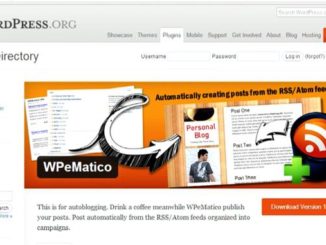
WP-o-Matic is a great little free WordPress plug-in you can use to turn RSS feeds into blog posts.  You don’t have as many options as you do in Autoblogged, but it seems lightning quick.

It is very light on resources and is easy to setup and use. If you are looking for a free way to turn RSS feeds into blog posts you should definitely take a look at this plug-in.

You can find it at http://wordpress.org/extend/plugins/wp-o-matic/