Archive for the ‘Data Recovery’ Category

ePreserver Review: The Only Way to Export AOL Mail Files

To my horror the other day I found out that AOL has come up with a stand alone email client that allows users to download their AOL email to their PC.  I found this out when one of my guys was scratching his head trying to figure out how to transfer a client’s email to a new computer.  After a bit of research the only solution we found was ePreserver.

You can buy it at http://www.connectedsw.com/Overview/57266 for around $25.  Other vendors were selling it for up to $150 (I don’t know why).

It’s a simple to use tool, works like a champ and is worth the money.

BlacX External SATA Hard Drive Docking Station Review: Good Idea, but They Die Too Quickly

image

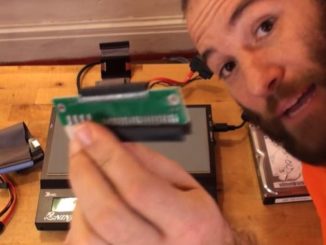
The BlacX SATA Hard Drive Docking Station is a phenomenal idea as a tool for professionals to use for data recovery and other tasks.  This is a USB device and you can plug-in either full size hard drives, or laptop hard drives into the station and they are immediately accessible just like any other external hard drive.

When the device works it’s great, but sadly they die… quickly.  I bought 5 of these for my business about a year ago and only 1 still works.  Some people may never notice the problems, but as a technician I find that they are too flaky to depend on. 

When transferring large amounts of data from hard drives I find that the devices will become inaccessible and fail at random intervals.  After resetting the device it will work and transfer data for awhile, but I always have to keep my eye on it.

If you are looking for something to help you figure out what is on all the hard drives laying around your shop this is a handy tool to help you out.  If you need a reliable way to pull data from dead or dyeing drives this is probably not for you.

You can take a look at the spec page at http://www.thermaltakeusa.com/Product.aspx?S=1268&ID=1642 .  I originally bought mine from NewEgg.com for around $40 a piece.

Acronis True Image for Data Recovery

Warning: This post is for the professionals and pro-sumers out there.  If you can’t follow what I am saying you should save your money and not try this.

If your operating system dies entirely, or viruses make using it almost impossible, we use a simple, affordable and GENERALLY painless process for recovering the data on the computer.

We use a piece of software called Acronis True Image Home (www.Acronis.com).  This is phenomenal backup software that we use for servers and home machines regularly.  If you are only doing data recovery purchase the Home edition because it only costs $50 compared to up to $999 for the server editions, and it will work on server for recovery purposes.

I would suggest when you buy the software you go down to your local Best Buy or buy a retail copy online.  The reason for this is that the install media is bootable and gives you all the tools you need to recover data.  If you buy the download version you have to install it and then create bootable media later.  This is not difficult, but why waste the time.

All you will need for this process is a copy of Acronis and either an external hard drive, or a shared network drive.  If you are new to this process, or do not use it often, I would suggest you use an external hard drive.  We have found that Acronis can have some quirks when it comes to connecting to network shares.  These are not huge problems and we use the network share in our shop for backups, but it can create issues for people unused to the software.

Once you have an Aconis Install CD and an appropriately sized hard drive, just plug in the hard drive and boot from the CD. (Do not try to boot into Windows).

Past this point the process for backing up is pretty simple for computer literate people.  Click through a few splash screens, select Backup and pick your options.  This process will create an image of the hard drive, or files, and store it in a single .tib file.

My advice is to image the entire hard drive instead of trying to recover individual files.  The reason for this is that you can recover individual files from the full backup, so why worry about missing a file if you try them individually?  Also, do not bother with the Sector by Sector option, this sounds good, but always fails.

Once you have the full backup you now have 2 options:

  1. Do the process on another computer only select recovery instead of backup and dump the files where you want them.
  2. Or, if you install Acronis on the target computer you will be able to click through the backup file just like it’s a normal Windows folder.  Once Acronis is installed just double click the .tib file and you can copy and paste anything you want from it to the computer you are using.

A Note On Acronis:

I think it’s about the best thing since sliced bread.  I have had numerous servers fail, and it took longer to find a new hard drive then it did to recover the server.  Acronis takes a complete snap shot of the system so bare metal restoration is a snap. My only gripe is the cost for the server software (It starts at $499), but for home users you can’t beat it.

I will do a blog on using Acronis for Backups later, but my advice if you are going to use it is to install a second hard drive in the system you are backing up.  Use the full size of that drive to create an Acronis Secure Zone.  And then setup a daily incremental backup routine to the secure zone.

If you do this the incremental files will automatically overwrite themselves when the drive runs out of space, and your sole backup management responsibility will be to check the log file every few days to make sur there were no quirks. (Most quirks involve users changing their passwords for the computer, and no changing the logon credentials within Acronis.  Or the backup hard drive physically failing.)

Understanding Data Recovery: The Basics

Data recovery can either be the easiest, or the most complicated work for a technician.  If you’re lucky you won’t have to spend a dime on equipment of software, but if you’re not you’ll need a clean room and tens of thousands of dollars worth of equipment.

I’ll go over the basic outline of how to recover data from a hard drive.  The actual tools and software you use can vary, but the overall process should be the same.

The steps:

  1. Can you boot the computer into it’s operating system and use the computer?  If you just deleted some files and removed them from the Recycle Bin your best bet may be to use a piece of software like Recuva or WinUndelete to get it back.  All you have to do is install the software on your computer, run the scan and then recover what you need.  There is a small chance that installing the software will overwrite some of your missing files, but realistically I would not worry about it.
  2. If you cannot boot into the operating system, but you think the hard drive is physically OK, then you need to make the hard drive a slave to another operating system.  What this means is that you either install the hard drive into another computer and allow that computer’s operating system to see the drive, you use a Linux LiveCD and boot into the Linux environment to see the drive, or what we do is boot using an Acronis installation CD and then backup the drives contents to a network share.
  3. If the drive is detectable, but is very slow to read you probably have significant damage on the platters.  For this you need a special piece of equipment to rip the data off of the old hard drive and put it onto a stable one.  The reason is that normal operating systems will retry to read bad sectors up to 10 times before deciding that the sector is unreadable.  If you only have a few bad sectors this will not be a problem, but if a large number of sectors are bad it can mean that trying to transfer data off the hard drive will take days instead of minutes.  For this process we use the YEC Ninja which costs approx. $1300.  We have been experimenting with free Linux software but have not been able to get them to work reliably.
  4. If your data is on a stable drive, but is completely unreadable you may need a piece of software to try to decipher the corrupted data.  We use  Active Undelete to do this.  This software will recover not only files, but also deleted partitions.  The corporate version of this is $99 per license.  This process can take 24-48 hours depending on the size of the drive.
  5. If the drive is not detectable by your Ninja type device then you have serious problems.  From this point you could be looking at a bad controller board, or the internal hard drive mechanisms are bad. Either way you are legitimately looking at a $500 – $2000 repair.  Although I’ll explain the next parts if you are reading this you should not try to do them.
  6. The controller board replacement should not be a big deal,  but sadly it is.  The repair itself is easy, and the board should cost around $50. BUT it’s almost impossible to know which board to buy, and then get one.  Buying new boards is extremely difficult, and the problem with trying to buy an old functional drive and then swapping the board is that manufacturers use many different parts for the same model number.  Just because all the numbers on the sticker match does not mean they have the same board.
  7. If the board is OK and the inside bits are busted then you need a dust free clean room and a lot of spare parts.  If a single piece of dust enters the hard drive casing the entire drive will be worthless.  Once in a clean room a highly qualified tech has to figure out what part broke and how to fix it.

I hope this helps you understand the basics of data recovery so that you will not be ripped off for simple work, but will also understand why the high level recovery is so expensive. I researched adding  the high end data recovery for our shop and decided that the upfront cost was too high.

How to Get Your Data When Your Operating System is Dead

Note: This Advice Not for Meant for Novices

The number 1 reason people come to my shop for data recovery is that their OS died, and the computer is not worth fixing.  In general recovering the data in this situation is a pretty simple process.

One way you can do this is by removing the hard drive from your old computer and connecting it to a working computer.  You can do this by connecting the hard drive to the IDE or SATA connection in your new computer, or by installing the old hard drive in an external enclosure and then connecting it to your PC.

If you connect the drive directly to a new computer make sure that the BIOS is configured not to boot off the new drive.

Once the drive is detected and shows up in My Computer you should be able to drag and drop your files from the old hard drive to your new computer.

There’s one caveat to this.  Sometimes you will need to take ownership of the folders on the old drive, and then change the permissions so that EYERYONE has full control. This is simple if you know what you are doing and have a Windows Business Operating system (XP Pro, or Vista Business), if not you will have to boot into safe mode for the security tab to show up. Make sure the folder you are trying to recover is not inheriting permissions from it’s parent container, but that its  sub containers are inheriting permissions from it.

DO NOT try to use a Mac to recover and Windows hard drive or vice versa. When a Mac initializes the drive all the data on the drive will be wiped.

You can use a GUI Linux distro to perform this procedure for either a Windows or Mac computer.  Just remember you will probably have to force mount the drive for it to be readable.